
Introduction
Windows 11 continues to be Microsoft’s modern operating system, and even in 2026, many users are still upgrading or performing fresh installations. Whether you are a home user, office employee, or IT technician, knowing how to install Windows 11 correctly is essential for better performance, security, and long-term stability.
Compared to older Windows versions, Windows 11 offers a cleaner interface, stronger security features, improved multitasking, and better support for modern hardware. In this guide, you will learn how to install Windows 11 step by step, including upgrade and clean installation methods, system requirements, common errors, and post-installation tips.
This article is written in simple language, follows Google SEO best practices, and is fully AdSense-friendly.
Windows 11 System Requirements (2026 Updated)
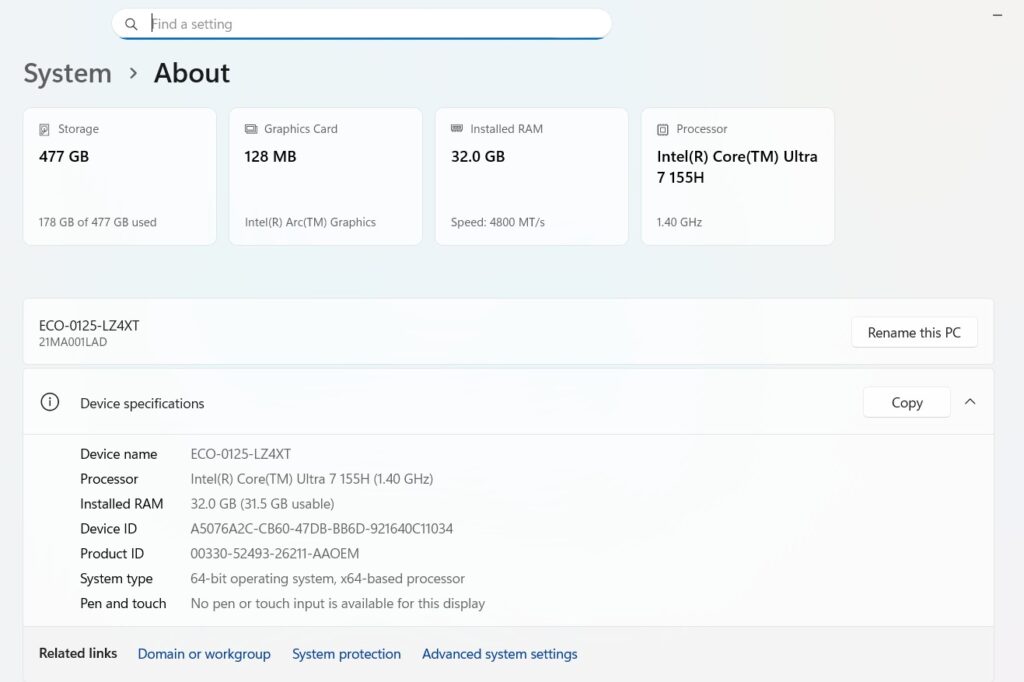
Before you install Windows 11, your PC must meet the minimum system requirements.
Minimum Requirements
- Processor: 1 GHz or faster, 2 cores, 64-bit compatible CPU
- RAM: 4 GB
- Storage: 64 GB or more
- System Firmware: UEFI with Secure Boot
- TPM: Version 2.0
- Graphics: DirectX 12 compatible
- Display: 9” or larger, 720p resolution
Recommended Requirements
- Processor: Intel 8th Gen / AMD Ryzen 3000 or newer
- RAM: 8 GB or more
- Storage: SSD with 128 GB or more
- TPM 2.0 enabled
- Secure Boot enabled
TPM 2.0 and Secure Boot help protect your system from malware and unauthorized access. Most modern laptops already support these features.
Things to Do Before Installing Windows 11
Before starting the Windows 11 installation, follow these important steps:
- Backup important data to an external drive or cloud storage
- Ensure your laptop is fully charged or connected to power
- Check system compatibility using PC Health tools
- Have a stable internet connection
- Sign in with or prepare a Microsoft account
Preparing properly helps avoid data loss and installation failure.
Method 1: Upgrade from Windows 10 to Windows 11
This method keeps your files, apps, and settings.
Steps to Upgrade
- Open Settings → Windows Update
- Check for updates
- If Windows 11 is available, click Download and Install
- Follow on-screen instructions
- Restart your PC
Pros
- Keeps files and applications
- Faster than clean installation
Cons
- May carry old system issues
- Slightly slower performance than clean install
This method is recommended for regular users.
Method 2: Clean Install Windows 11 Using USB (Recommended)
A clean install gives the best performance and stability.
Step 1: Create a Bootable USB
- Use an empty USB (8 GB or more)
- Download Windows installation media
- Create bootable USB using official tools
Step 2: Boot from USB
- Restart your PC
- Press F2 / F12 / DEL / ESC (depends on manufacturer)
- Select USB from boot menu
Step 3: Install Windows 11
- Choose language and region
- Click Install Now
- Enter product key or skip
- Select Custom Install
- Delete old partitions (if needed)
- Select unallocated space
- Continue installation
Your PC will restart several times.
Installing Windows 11 Without TPM or Secure Boot (Educational Only)
Some older PCs do not support TPM 2.0 or Secure Boot. Installing Windows 11 on unsupported hardware is not recommended for daily use.
Important Notes
- May not receive future updates
- Higher security risk
- Suitable only for testing or learning
Always use supported hardware for production systems.
After Installation: Important Settings to Change
Once Windows 11 is installed, complete these steps:
- Run Windows Update
- Install missing drivers
- Adjust privacy settings
- Enable Windows Security
- Configure startup apps
These steps improve performance and security.
Common Windows 11 Installation Errors & Fixes
TPM Error
- Enable TPM from BIOS/UEFI
Secure Boot Error
- Change boot mode to UEFI
Installation Stuck
- Restart installation
- Check USB integrity
Driver Missing Error
- Load storage drivers manually
Most errors are easy to fix with basic troubleshooting.
Windows 11 Tips for Better Performance
- Disable unnecessary startup programs
- Use Storage Sense
- Keep drivers updated
- Use built-in antivirus
- Avoid unknown software
These tips keep Windows 11 fast and stable.
Frequently Asked Questions (FAQ)
Is Windows 11 free in 2026?
Yes, Windows 10 users can still upgrade for free on supported devices.
Can old PCs run Windows 11?
Only if they meet minimum requirements.
Is Windows 11 good for gaming?
Yes, it offers better gaming performance and DirectX support.
Conclusion
Installing Windows 11 in 2026 is still a smart decision for users who want better security, performance, and modern features. Whether you choose an upgrade or a clean install, following the correct steps ensures a smooth experience.
If this guide helped you, explore more Windows installation and troubleshooting guides on our tech blog.


Leave a Reply