

Windows 11 introduces a modern installation process, but many users face a common frustration during setup: the mandatory internet connection requirement. Microsoft strongly encourages signing in with a Microsoft account and connecting to a network before reaching the desktop. However, there are valid reasons why users may want to bypass the network setup in Windows 11, such as limited internet access, privacy concerns, or setting up a device for offline use.
In this guide, you’ll learn safe, working, and up-to-date methods to bypass the network setup during Windows 11 installation while keeping your system fully functional.
Why Does Windows 11 Require Internet During Setup?
Microsoft designed Windows 11 to be cloud-connected by default. The network requirement helps Microsoft:
- Push updates during setup
- Encourage Microsoft account usage
- Sync settings and services
- Improve device security
However, this is not always convenient. Many users prefer a local account, especially for business environments, testing machines, or privacy-focused setups.
Benefits of Bypassing Network Setup in Windows 11
By skipping the network requirement, you can:
- Create a local user account instead of a Microsoft account
- Complete installation without internet access
- Speed up the setup process
- Avoid forced online services
- Maintain better control over privacy
This method is legal and safe and does not modify system files permanently.
Method 1: Use Command Prompt (Most Reliable Method)
This is the most effective and widely used method to bypass network setup.
Step-by-Step Instructions:
- Start installing Windows 11 normally.
- When you reach the screen that says “Let’s connect you to a network”, stop.
- Press Shift + F10 on your keyboard.
This opens Command Prompt. - Type the following command exactly and press Enter:
OOBE\BYPASSNRO- The system will restart automatically.
- After restart, continue the setup.
- You will now see an option called “I don’t have internet”.
- Select it, then choose “Continue with limited setup”.
- Create a local account and finish installation.
✔️ Works on Windows 11 Home and Pro
✔️ No third-party tools required
✔️ Fully reversible
Method 2: Disable Network Temporarily
If you already have internet hardware connected:
- Unplug Ethernet cable
- Turn off Wi-Fi from BIOS or router
- Use Airplane Mode (if available)
Windows may still attempt to reconnect, so this method is less reliable than the Command Prompt method.
Is Bypassing Network Setup Safe?
Yes. Bypassing network setup does not:
- Break Windows updates
- Violate Microsoft policies
- Affect performance or security
You can connect to the internet later and even sign in with a Microsoft account if needed.
What Happens After Installation?
Once you reach the desktop, you can:
- Connect to Wi-Fi or Ethernet
- Install updates manually
- Add a Microsoft account later (optional)
- Use Windows 11 fully offline if preferred
The operating system functions normally with a local account.
Common Issues and Fixes
Command not recognized?
Make sure you typed OOBE\BYPASSNRO correctly (case doesn’t matter).
Shift + F10 not working?
Try using an external keyboard or enable function keys (Fn key).
No “I don’t have internet” option?
Restart and repeat the steps carefully.
SEO Keywords Used Naturally
- bypass network setup Windows 11
- Windows 11 offline installation
- skip internet Windows 11 setup
- Windows 11 local account installation
- bypass Microsoft account Windows 11
Final Thoughts
The ability to bypass network setup in Windows 11 gives users more flexibility and control during installation. Whether you’re setting up a new PC, reinstalling Windows, or managing multiple systems, this method allows you to install Windows 11 offline, fast, and hassle-free.
Share my working screenshort
bypass network setup windows 11 any require setup account or network access
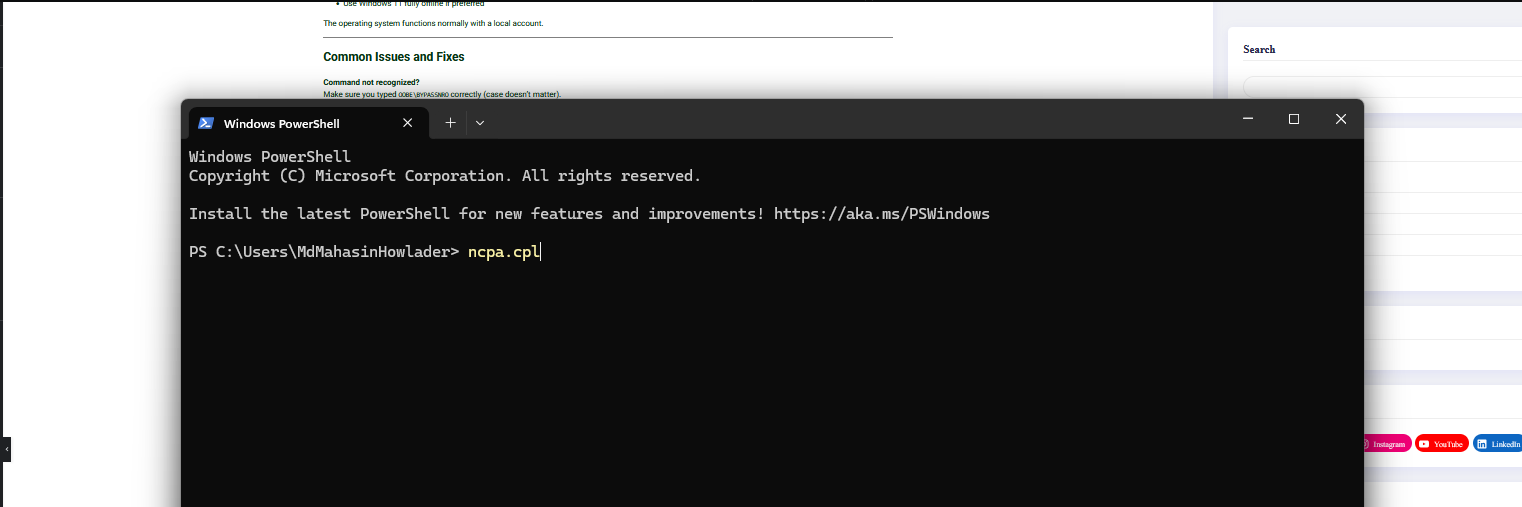
Type ncpa.cpl Then press Enter

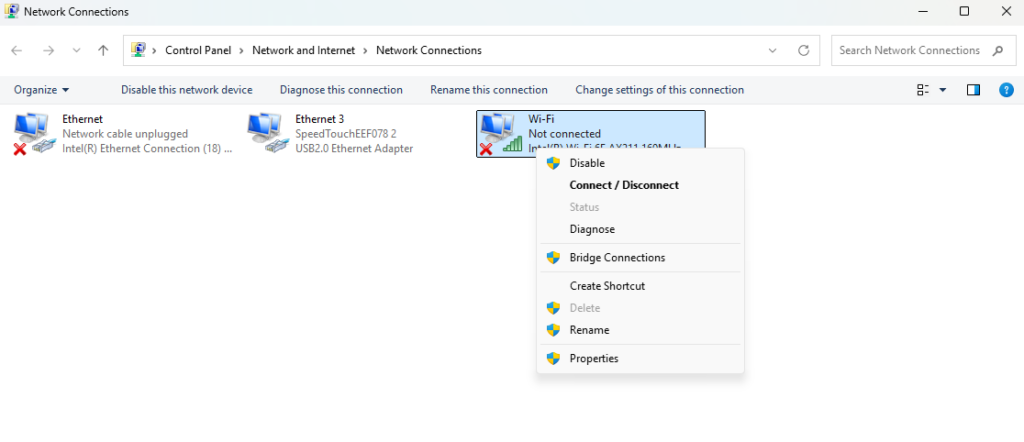
Find the network drive then right click and WiFi driver
Then right bypass code
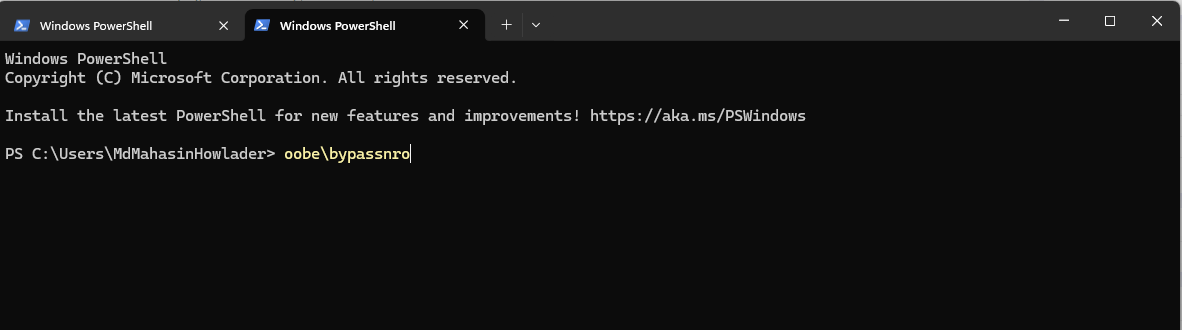
Just click enter and then see the magic ……..try it
You can find my other article bypass network setup windows 11 just click dawn link


Leave a Reply