
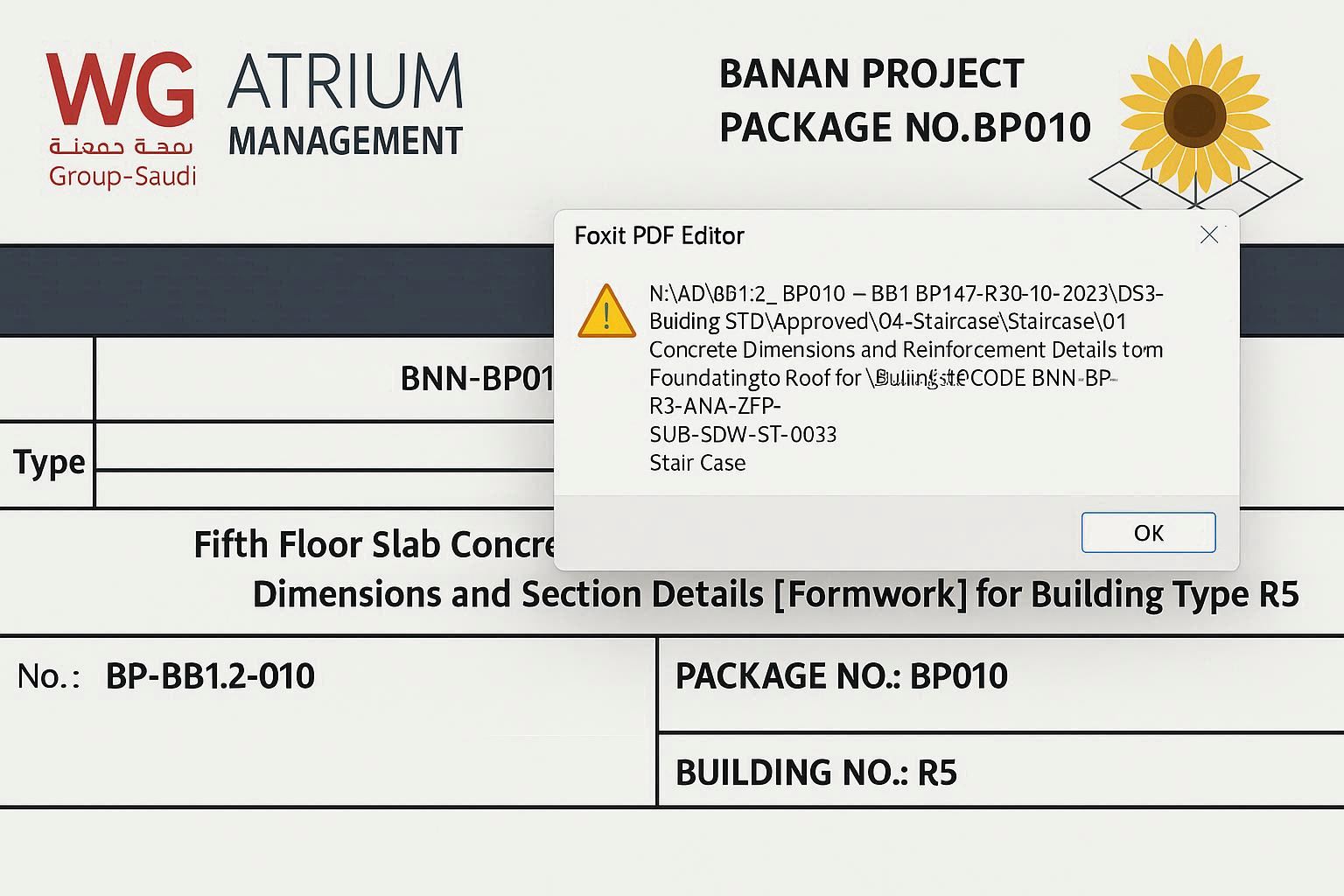
If you work with backups, WordPress projects, ZIP files, or deep folder structures, you may suddenly see this message:
“File Path Too Long”
I recently faced this issue while restoring a client’s website backup on a Windows 11 Pro system. The folder extracted successfully — but copying it to another drive failed.
If you’re facing the same problem, this guide will show you the exact professional fix I use in real IT field work.
How to Fix File Path Too Long Error in Windows 11 – Learn by Tech
What Is the File Path Too Long Error?
Windows traditionally limits file paths to 260 characters (called MAX_PATH).
That means this type of structure may break:
C:\Users\DC\Documents\Projects\2026\ClientWebsite\Backup\FinalVersion\Assets\Images\Edited\Compressed\Archive\...
Once the total path length crosses the limit, Windows blocks the operation.
This commonly happens when:
- Extracting large ZIP backups
- Migrating WordPress sites
- Copying deep software folders
- Syncing OneDrive projects
- Managing IT asset documentation folders
Method 1: Enable Win32 Long Paths (Recommended Permanent Fix)
This is the most stable and professional solution.
Step 1: Open Group Policy Editor
Press Win + R
Type:
gpedit.msc
Press Enter.
Step 2: Navigate to
Computer Configuration
→ Administrative Templates
→ System
→ Filesystem
Step 3: Enable Long Paths
Find:
Enable Win32 long paths
Double click it → Select Enabled → Click Apply → OK.
Restart your computer.
After reboot, Windows will allow longer file paths.
✔ This method works best for Windows 11 Pro and Enterprise editions.
Method 2: Registry Editor Fix (For Windows 11 Home)
If you don’t have Group Policy Editor:
Step 1
Press Win + R
Type:
regedit
Step 2
Go to:
HKEY_LOCAL_MACHINE\SYSTEM\CurrentControlSet\Control\FileSystem
Step 3
Find or create:
LongPathsEnabled
Set value to:
1
Restart your PC.
This manually enables long path support.
Method 3: Quick Emergency Fix (Shorten Folder Structure)
If you need an instant solution:
Move your files closer to the root drive.
Example:
❌ Too Long:
C:\Users\Mahasin\Documents\Projects\2026\Client\Website\Backup\Final\Version2\File.zip
✅ Short Path:
C:\Web\File.zip
This works immediately without system changes.
Why This Problem Happens Frequently in IT Work
As an IT technician, I’ve noticed this error mostly appears when:
- Clients send full website backups
- Developers use deeply nested folders
- Software installers generate long subdirectories
- Asset management systems store multi-level structured files
If you’re running a WordPress tools or IT asset management system, always keep folder naming short and clean.
Professional IT Tips to Prevent This Issue
✔ Keep folder names under 20 characters
✔ Avoid unnecessary nested subfolders
✔ Extract ZIP files directly to C:\Temp
✔ Clean old backup versions regularly
✔ Use structured but short naming conventions
How to Fix File Path Too Long Error in Windows 11 (Step-by-Step Guide)
🟢 Introduction
Yesterday one client called me because Windows 11 was showing the “File Path Too Long” error while copying a backup folder.
If you are also facing this problem in Windows 11 Pro, don’t worry — I will show you the exact solution I use in real IT field work.
This guide works for both normal users and IT administrators.
❓ What Causes File Path Too Long Error?
By default, Windows has a 260-character file path limit (MAX_PATH).
If your file location looks like this:
C:\Users\Mahasin\Documents\Projects\Website\Backup\Final\2026\Assets\Images\Edited\Version2\...
Windows may block it.
This usually happens when:
- Extracting ZIP files
- Copying deep folder backups
- Installing some software
- Moving WordPress backup files
🛠 Solution 1 – Enable Win32 Long Paths (Best Method)
This is the professional solution.
Step 1:
Press Win + R
Type:
gpedit.msc
Step 2:
Go to:
Computer Configuration
→ Administrative Templates
→ System
→ Filesystem
Step 3:
Double click:
Enable Win32 long paths
Select Enabled
Click Apply → OK
Restart your computer.
✅ Problem solved in most cases.
🛠 Solution 2 – Registry Editor Method
If Group Policy is not available:
Step 1:
Press Win + R
Type:
regedit
Step 2:
Go to:
HKEY_LOCAL_MACHINE\SYSTEM\CurrentControlSet\Control\FileSystem
Step 3:
Find:
LongPathsEnabled
Set value to:
1
Restart PC.
🛠 Solution 3 – Simple Folder Shortening Trick
Move files closer to root drive:
❌ Before:
C:\Users\Mahasin\Documents\Projects\2026\Website\Backup\Final\File.pdf
✅ After:
C:\Web\File.pdf
This quick trick works immediately.
🧠 Pro IT Technician Tip
When managing backup systems or WordPress websites, always:
- Keep folder names short
- Avoid unnecessary subfolders
- Avoid long ZIP extraction paths
This prevents future errors.
📌 Final Thoughts
The File Path Too Long error in Windows 11 is not a serious issue, but it can interrupt your work during backup or file transfer.
Using the Group Policy method is the most stable and permanent fix.
If you are managing multiple systems in your office, apply this setting once and avoid future problems.




Leave a Reply