
Introduction
Today, we store everything digitally. Photos, videos, office files, backups, CCTV data, and important documents are all saved on computers and phones. If this data is lost, it can cause serious problems. Because of this, we need a safe, reliable, and easy storage solution.
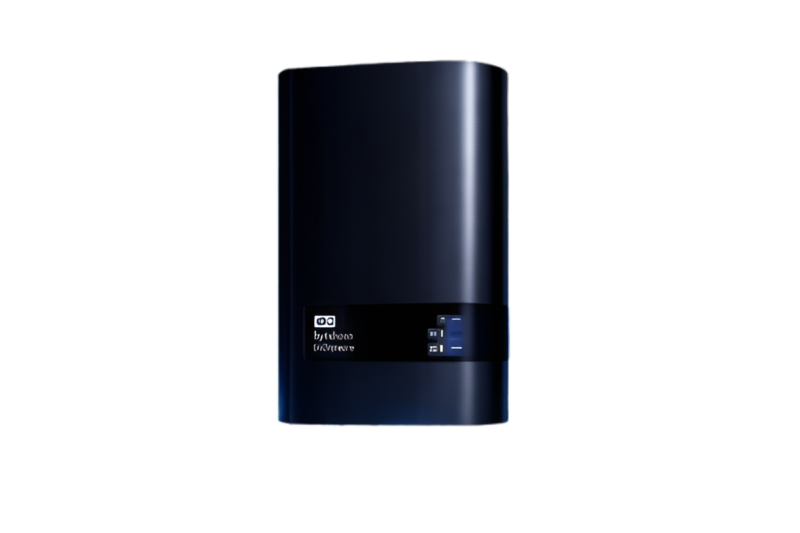
NAS (Network Attached Storage) is one of the best solutions for storing and protecting data. A NAS Storage setup allows you to save all your files in one place and access them from multiple devices using a network. It works all the time and keeps your data secure.
In this blog, you will learn NAS storage full setup and installation in easy language, step by step. This guide is perfect for beginners, IT technicians, home users, and small businesses. It is written in a natural human style, optimized for SEO, and fully safe for Google AdSense.
What Is NAS Storage?
NAS stands for Network Attached Storage. It is a special device that connects to your network and stores data. Unlike a USB hard drive, NAS does not need to be connected to one computer. Many users and devices can access it at the same time.
A NAS device has:
- Its own operating system
- One or more hard drives
- Network connection
- User management
- Security features
Once installed, NAS works like a private cloud inside your home or office.
Why Do You Need NAS Storage?
Many people use external hard drives or cloud storage. But NAS gives more control and better value.
Main Benefits of NAS
- Central storage for all files
- Automatic backup
- File sharing between users
- Data protection using RAID
- Access files from anywhere
- No monthly cloud fees
- High-speed local access
- Expandable storage
NAS is ideal for people who want full control over their data.
NAS vs External Hard Drive vs Cloud Storage
| Feature | NAS Storage | External Hard Drive | Cloud Storage |
|---|---|---|---|
| Works 24/7 | Yes | No | Yes |
| Multi-user access | Yes | No | Yes |
| Monthly cost | No | No | Yes |
| Internet required | No | No | Yes |
| Data control | Full | Full | Limited |
| Speed | Very fast | Medium | Depends on internet |
NAS is the best option when you want speed, privacy, and long-term savings.
Types of NAS Devices
1. Home NAS
Used for photos, videos, personal backups, and media streaming.
2. Office / Small Business NAS
Used for file sharing, team work, and data backup.
3. Enterprise NAS
Used by large companies for heavy workloads.
Popular NAS Brands
- Synology
- QNAP
- Western Digital
- Asustor
- TerraMaster
NAS Hardware Requirements
Before starting installation, make sure you have:
- NAS device (2-bay or more recommended)
- NAS hard drives (WD Red or Seagate IronWolf)
- Ethernet cable
- Router or network switch
- Computer or laptop
- Power adapter
- Optional UPS for power backup
Using NAS-rated hard drives increases safety and performance.
NAS Full Setup & Installation (Step by Step)
Step 1: Install Hard Drives in NAS
- Turn off the NAS
- Open the hard drive trays
- Insert the hard drives carefully
- Secure the trays
- Close the NAS cover
Make sure the drives are properly fixed.
Step 2: Connect NAS to Network
- Connect NAS to router using Ethernet cable
- Connect the power cable
- Turn on the NAS
- Wait until lights become stable
NAS must be connected by cable for best speed.
Step 3: Find NAS on Your Network
On your computer:
- Install NAS finder tool (Synology Assistant or Qfinder)
- Or open browser and type NAS IP address
- Example:
http://192.168.1.100:5000
This opens the NAS setup page.
Step 4: Install NAS Operating System
During first setup:
- Download the latest NAS system
- Install DSM or QTS
- Create admin username and password
- Set device name
- Select time zone
This process takes about 10 to 20 minutes.
Storage Pool and RAID Setup
What Is RAID?
RAID protects your data by using multiple hard drives. If one drive fails, data is still safe.
Common RAID Types
- RAID 0 – Fast but no protection
- RAID 1 – Data mirror (best for beginners)
- RAID 5 – Good balance of space and safety
- RAID 6 – Extra protection
- RAID 10 – High performance and safety
Choose RAID based on your needs.
Create Volumes and Shared Folders
After RAID setup:
- Create a storage volume
- Create shared folders (Backup, Media, Documents)
- Enable recycle bin
- Set folder permissions
This helps keep files organized.
User Account and Permission Setup
User management is very important.
Steps:
- Create user accounts
- Give read or write access
- Disable guest access
- Use strong passwords
- Enable account lock after failed login
This protects your data from misuse.
Enable Network File Access
Enable services based on your system:
- SMB for Windows
- AFP for macOS
- NFS for Linux
- FTP or SFTP (optional)
Now your NAS will appear as a network drive.
Backup Setup (Very Important)
Backup protects your data from loss.
Backup Options
- Computer to NAS backup
- NAS to external USB drive
- NAS to cloud backup
- Snapshot backup
Follow 3-2-1 Backup Rule
- 3 copies of data
- 2 different storage types
- 1 off-site backup
Backup is the most important part of NAS.
Remote Access Setup
To access NAS from outside:
- Enable QuickConnect or myQNAPcloud
- Enable HTTPS
- Configure port forwarding
- Enable two-factor authentication
This allows safe access from anywhere.
NAS Security Best Practices
- Change default ports
- Enable firewall
- Disable unused services
- Enable auto updates
- Use antivirus
- Enable login notifications
Security keeps your data safe from hackers.
Improve NAS Performance
- Upgrade RAM
- Use SSD cache
- Use Gigabit router
- Monitor system usage
- Schedule backups at night
These steps improve speed and stability.
Common NAS Problems and Solutions
NAS Not Found
- Check network cable
- Restart router
- Disable firewall temporarily
Slow Speed
- Check network speed
- Avoid RAID rebuild time
- Upgrade RAM
Storage Full
- Delete old files
- Enable storage analyzer
- Add more hard drives
How People Use NAS
- File server
- Backup server
- Media streaming
- CCTV storage
- Website hosting
- Virtual machines
- Docker applications
NAS is more than just storage.
Final Words
NAS storage is one of the best solutions for anyone who wants safe, fast, and private data storage. With correct setup, proper backup, and good security, NAS can protect your data for many years.
If you want full control over your files and no monthly fees, NAS is the right choice.


Leave a Reply to How Much Does Rolls-Royce Earn Per Car? Profit Explained Cancel reply